Enter the exact network details
Copy the SSID, choose the matching security type and enter the password exactly, including capital letters and symbols.

Enter the exact network name, security type and password. QRmakerX creates the code in your browser, checks that it can be decoded, and then enables PNG, SVG and PDF downloads.
Use the same spelling and capital letters shown in your router settings. WiFi names and passwords are case-sensitive.
Downloads remain disabled until the browser can decode the generated QR code successfully.
Your WiFi details are processed in this browser and are not uploaded to QRmakerX. The external code libraries required to build and verify the QR code are loaded from third-party CDNs.
The code stores the connection details in a format supported by many modern phone cameras and QR scanners.
Copy the SSID, choose the matching security type and enter the password exactly, including capital letters and symbols.
QRmakerX renders the code and uses a browser-based decoder to confirm that the payload can be read back correctly.
Scan the final code on both Android and iPhone before printing it or sharing it with guests.
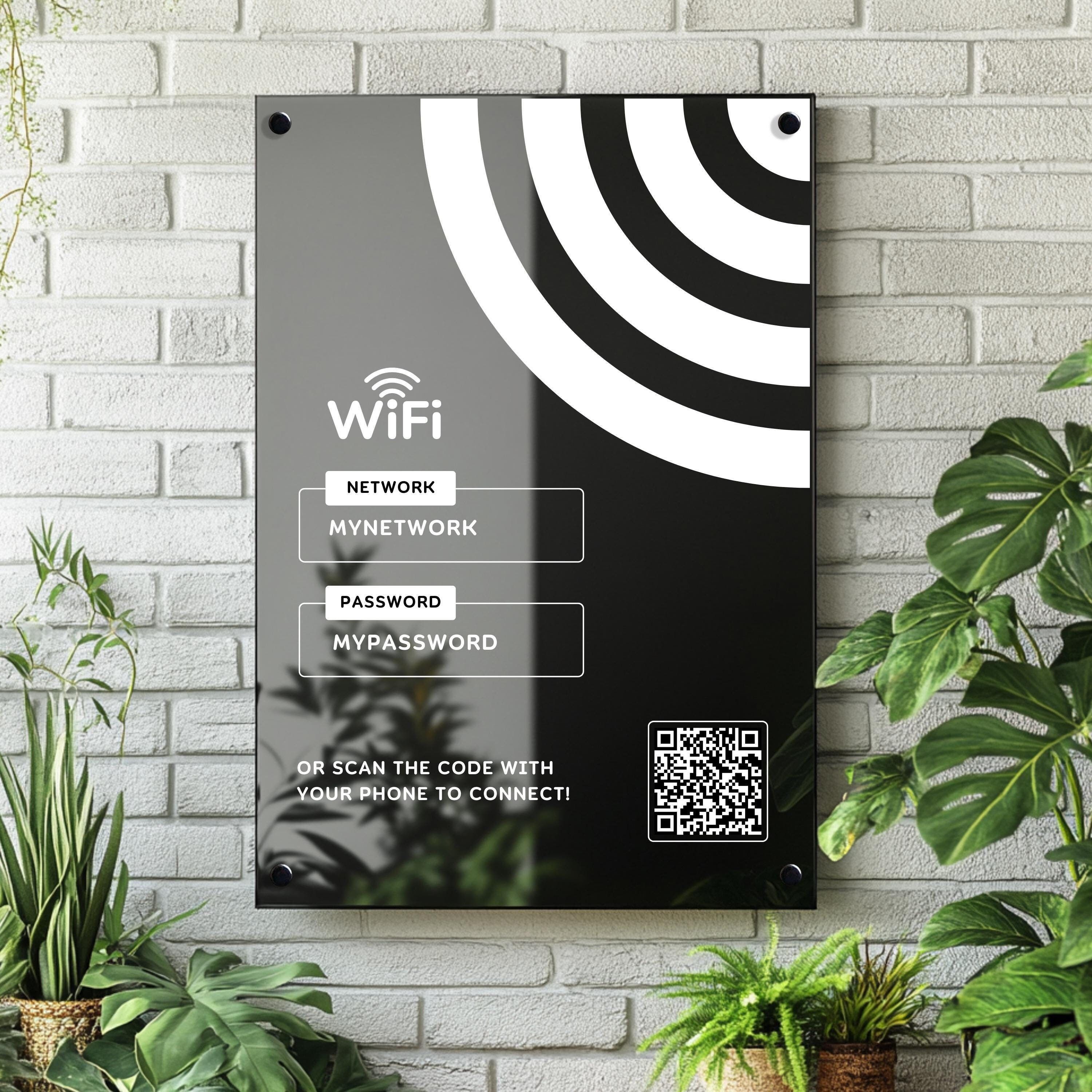
A WiFi QR code is convenient, but it contains credentials that can be copied. Treat the printed or shared code like the password itself.
It contains only the controls and guidance required for a WiFi connection code, rather than duplicating the general QR Code Generator. For product and inventory labels, use the Barcode Generator; for preparing logos or graphics, try the browser-based Image Tools.
Special characters in the network name and password are escaped before the code is generated.
The generated image must decode back to the intended WiFi payload before downloads are enabled.
Adding a logo automatically switches the code to high error correction and limits the covered area.
Download PNG for everyday use, SVG for scalable artwork or PDF for convenient printing.
The WiFi details are stored directly in the code. There is no QRmakerX redirect or scan limit. Learn more in Static vs Dynamic QR Codes.
The page explains why a separate guest network is usually safer than sharing the primary network.
Continue with the most relevant QRmakerX resources for WiFi setup, scanning, static QR behavior and QR code fundamentals.
Read the full step-by-step guide for network fields, guest access, testing and safe sharing. Open the WiFi guide.
Learn how QR scanning works on Android and iPhone and what to check when a code will not scan. Read the scanning guide.
Understand why WiFi credentials in this generator are stored directly in a static QR pattern. Read the comparison.
Review the fundamentals of QR codes, how they store data and how scanners read the pattern. Read the basics.
Important points to check before displaying or printing the code.
The password is stored inside the QR code so a compatible device can use it to connect. Anyone who can scan or decode the code may be able to retrieve the credentials. Use a guest network where possible.
The static code itself does not normally expire. It stops working when the network name, security type, password or hidden-network setting no longer matches the router.
Choose the setting used by the router. Most current password-protected networks use WPA or WPA2. Some WPA3 personal networks also work through the WPA payload on compatible devices. Use WEP only for an older WEP network and choose Open network only when no password is required.
Downloads are enabled only after the browser generates the code and successfully decodes it back to the intended WiFi payload. Low contrast, excessive data or an oversized logo can prevent verification.
Many current Android and iPhone camera apps recognize WiFi QR codes. Behaviour can differ by phone model, software version and scanner app, so test the final code on the devices your visitors are likely to use.
No. This is a static code. After changing the router password, create and print a new QR code.