
Quick answer
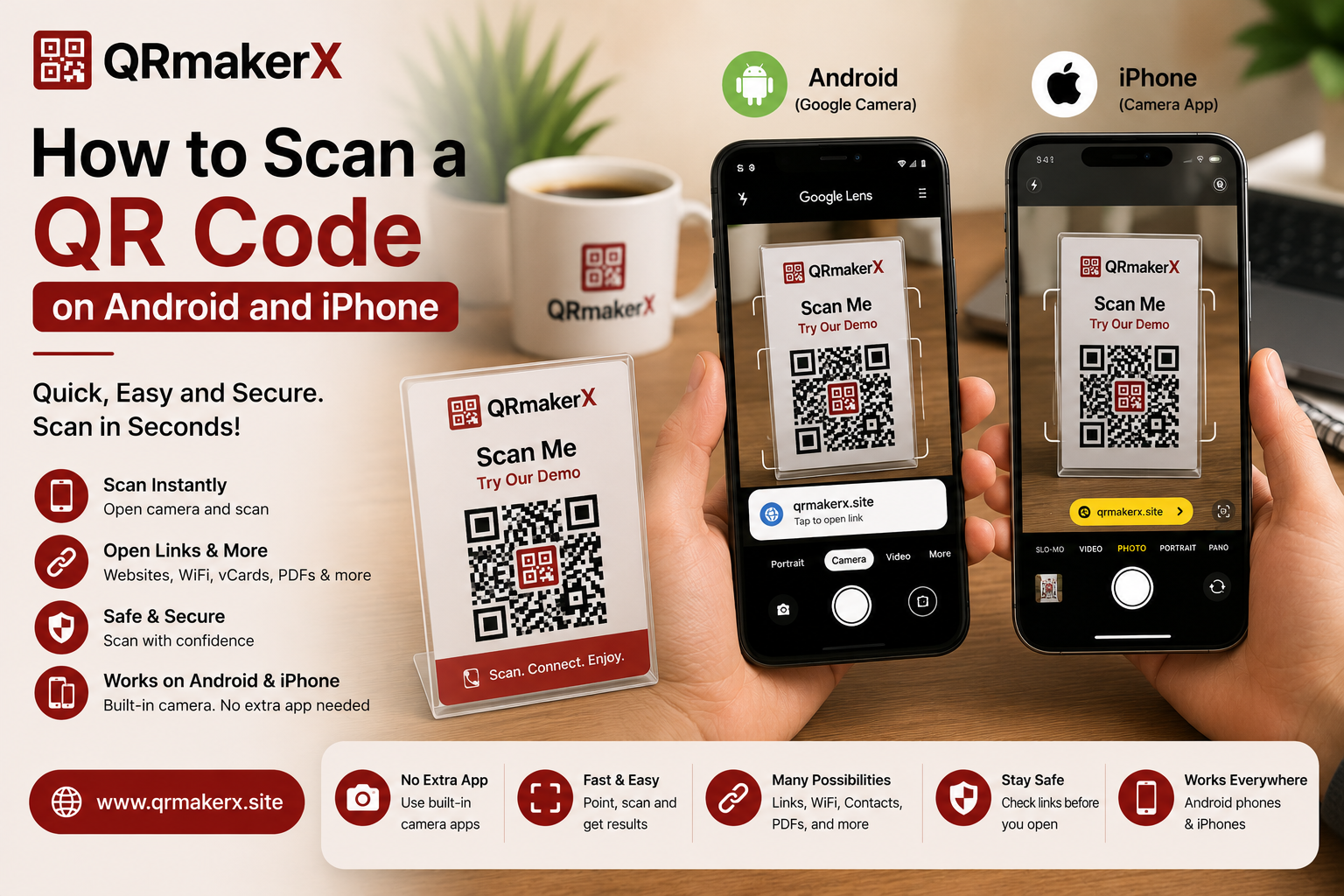
Open your phone's Camera app, point it steadily at the QR code and tap the banner or notification that appears. If that does not work, use the built-in QR Scanner, Google Lens or your phone's Quick Settings scanner.
Before you scan a QR code
Clean the camera lens, make sure the QR code is fully visible and use enough light. Hold the phone steadily rather than moving it closer and farther repeatedly.
A QR code does not need to fill the entire screen. Leave a little space around it so the camera can see the complete square and its border.
How to scan a QR code on Android
Many recent Android devices can scan a QR code using the built-in camera. The exact names and menus vary by phone manufacturer and Android version.
Open the Camera app
Use the phone's normal built-in camera rather than a social media camera or video mode.
Use the standard photo mode
Point the rear camera at the complete QR code and hold the phone steady for a moment.
Tap the banner
When the phone recognizes the code, tap the banner, link or action shown on the screen.
How to scan a QR code on Samsung Galaxy
Samsung Galaxy phones commonly provide two built-in methods: the Camera app and a QR Scanner tile in Quick Settings.
Method 1: Camera app
- Open the Camera app.
- Point the camera at the QR code.
- Wait for the notification or link.
- Tap it to continue.
Method 2: Quick Settings
- Swipe down from the top of the screen.
- Find and tap Scan QR code or QR Scanner.
- Point the special scanner at the code.
- Open the detected result.
How to scan a QR code on Google Pixel
Pixel phones can use the camera, Google Lens or the Scan QR code button in Quick Settings.
Camera method
Open Camera, keep the phone in ordinary photo mode and point it at the code. Tap the detected action.
Quick Settings method
Swipe down, tap Scan QR code and point the dedicated scanner at the code.
Google Lens method
Open Lens from a supported Google app and place the QR code inside the camera view.
Missing scanner tile?
Edit Quick Settings and add the Scan QR code tile if it is available but not currently shown.
How to scan a QR code on iPhone
iPhone can scan QR codes with the Camera app or Code Scanner from Control Center.
Method 1: Camera app
Open Camera
Open Camera from the Home Screen, Lock Screen or Control Center.
Use Photo mode
Position the iPhone so the complete QR code appears within the camera frame.
Tap the detected link
Tap the link or notification shown on the screen to open the content.
Method 2: Code Scanner
- Open Control Center.
- Tap Code Scanner.
- Place the QR code inside the scanner view.
- Tap the detected result if needed.
How to scan a QR code already saved on your phone
You cannot point the same phone's camera at its own screen. Instead, use image-recognition tools that can read a code from a screenshot or saved photo.
On Android
Open the screenshot in Google Photos or another supported gallery, then use Google Lens. Select the QR code if the app does not detect it automatically.
On iPhone
Open the image in Photos and check whether iOS recognizes the QR content. Available actions can vary with the iOS version, image and QR content. Another reliable option is to display the image on a second screen and scan it with Camera or Code Scanner.
Why your phone may not scan the QR code
Poor lighting
Add light or increase the brightness of the screen displaying the code.
Dirty lens
Clean the camera lens with a soft cloth and try again.
Too close
Move slightly farther away so the entire QR code remains inside the frame.
Low contrast
A faint code or busy background can make detection unreliable.
Damaged code
Heavy folds, scratches or cropping can remove important parts of the pattern.
Scanning disabled
Check Camera settings or use the dedicated QR scanner provided by the phone.
Safety checks before opening a scanned QR code
- Read the domain before opening a web link.
- Be cautious of shortened or misspelled URLs.
- Do not enter passwords or payment information on suspicious pages.
- Avoid unexpected app downloads or configuration profiles.
- Confirm payment details before approving a transaction.
- Stop if the result does not match the place or purpose of the code.
Learn more about the technology behind scanning in What Is a QR Code and How Does It Work?
Common scanning mistakes
Using video mode
Use the standard photo or scanner mode unless your device says otherwise.
Covering part of the code
Keep fingers, glare and shadows away from the complete square.
Moving constantly
Hold the device still long enough for the camera to focus.
Opening without checking
Review the detected destination before tapping the link.
Create a QR code of your own
Generate a QR code for a website, text, WiFi network, email, phone number or another supported format.
Open the QRmakerX GeneratorFrequently asked questions
Do I need an app to scan a QR code?
Many recent Android phones and iPhones can scan QR codes with the built-in camera or a built-in scanner, so a separate app is often unnecessary.
How do I scan a QR code that is already on my phone?
On Android, open the image in Google Photos or another supported gallery and use Google Lens. On iPhone, check for recognized actions in Photos or display the code on another screen and scan it.
Why is my camera not detecting a QR code?
Check lighting, focus, camera permissions, scanning settings, screen brightness and whether the code is damaged, too small or low contrast.
Can Samsung Galaxy phones scan QR codes?
Many Galaxy devices can scan QR codes using the Camera app or the QR Scanner tile in Quick Settings.
Can an iPhone scan QR codes without an app?
Yes. Use the Camera app or Code Scanner from Control Center.