
Quick answer
Enter the exact network name, choose the correct security type, add the current password and indicate whether the network is hidden. Generate the code, scan-test it on more than one phone and only then print or share it.
Open the free WiFi QR GeneratorWhat is a WiFi QR code?
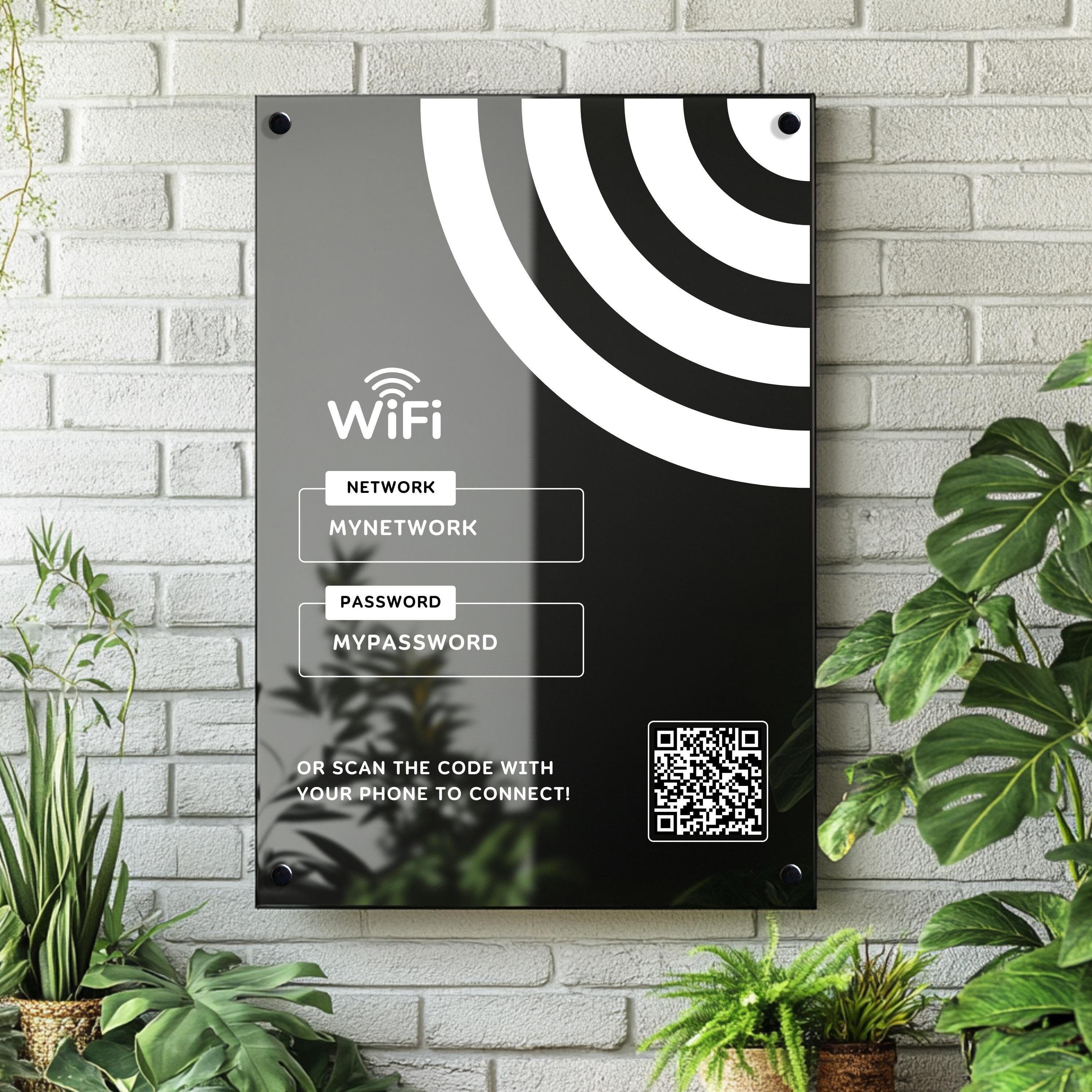
A WiFi QR code is a scannable code that stores the information needed to join a wireless network. Instead of asking a visitor to find the correct network and type a password, you can let them scan the code with a compatible phone.
The code can contain the network name, also known as the SSID, the security type, the password and an indication that the network is hidden. The phone reads those details and may offer to connect.
A WiFi QR code is usually static. The connection details are stored directly in the pattern. If the password changes, the old code does not update automatically.
How does a WiFi QR code work?
A WiFi QR generator formats the network details into a structure supported phones can understand. When the camera reads the code, the device identifies the network information and may show a prompt asking whether the user wants to connect.
Accuracy matters. A small mismatch in the network name, security setting or password can prevent the connection from working.
For more background on scanning and QR code structure, read What Is a QR Code? How It Works, Uses and Safety
What information is stored in a WiFi QR code?
A compatible WiFi QR code stores a formatted text string containing fields for the security type, network name, password and hidden network setting. A simplified example looks like this:
WIFI:T:WPA;S:Guest WiFi;P:ExamplePassword;H:false;;- T identifies the authentication type.
- S contains the exact network name or SSID.
- P contains the password when one is required.
- H indicates whether the network is hidden.
Characters such as semicolons, commas, quotation marks, colons and backslashes must be escaped correctly. The QRmakerX generator handles this formatting for you, so enter the real network details rather than manually editing the encoded string.
What you need before creating the code
- Network name: the exact SSID shown in your WiFi settings.
- Security type: the setting used by the router, such as WPA/WPA2, WPA3 or an open network.
- Password: the current password with the correct capitalization, numbers and symbols.
- Hidden-network status: whether the SSID is hidden from ordinary network lists.
How to create a WiFi QR code step by step
Open the QR generator
Open the QRmakerX WiFi QR Generator and select the WiFi option.
Enter the exact network name
Type the SSID exactly as it appears in the router or phone settings. Watch for spaces and capitalization.
Select the correct security type
Choose the option that matches the router. Do not select an open network unless the WiFi genuinely has no password.
Enter the password carefully
Check similar characters such as zero and capital O, or one and lowercase l.
Choose whether the network is hidden
Enable this only when the SSID is intentionally hidden from ordinary WiFi lists.
Generate and preview the code
Keep strong contrast between the dark modules and the background. Avoid excessive decoration.
Download a clear image
Use the available download option instead of taking a blurry screenshot.
Test before printing
Test with more than one device and scan the final printed size, not only the digital preview.
How to test a WiFi QR code properly
Testing only on the phone used to create the code is not enough. Different devices and camera applications may handle connection prompts differently.
- Disconnect the test phone from the network first.
- Scan using the normal Camera app.
- Confirm that the correct network name appears.
- Accept the connection prompt.
- Open a webpage to verify internet access.
- Repeat the test on a second phone.
- Test the final printed size and material.
For camera and scanner instructions, including common QR scanning problems, read How to Scan a QR Code on Android and iPhone .
Is it safe to share WiFi through a QR code?
A WiFi QR code is convenient, but it should be treated like any other way of sharing a password. Anyone who can access the code may be able to connect or decode the stored details.
Do not place a private-network code in a public location unless you are comfortable granting access to anyone who can see it.
Basic safety practices
- Use a guest network for visitors when possible.
- Use a strong, unique WiFi password.
- Change the password if the code is shared too widely.
- Keep router firmware and security settings updated.
- Remove old printed codes after changing credentials.
- Do not expose sensitive internal networks through public signs.
Why a guest WiFi network is usually better
A guest network can give visitors internet access while keeping them separate from devices and resources on the main network. This is particularly useful in offices, restaurants, clinics, shops and homes with smart devices.
| Question | Main network | Guest network |
|---|---|---|
| Best for visitors? | Usually not preferred | Usually the better choice |
| Access to internal devices | May be possible | Can often be restricted |
| Password changes | May affect your own devices | Can be changed separately |
| Public sharing | Higher risk | More manageable when configured correctly |
Common WiFi QR code mistakes
Typing the wrong SSID
Extra spaces, incorrect capitalization or a similar-looking network name can make the code fail.
Selecting the wrong security
The code must match the router's actual security configuration.
Using an old password
A static code must be recreated after the password changes.
Printing too small
Tiny codes, weak contrast and glossy reflections can reduce scan reliability.
Sharing the main network publicly
A public code can give unintended users access to a network meant only for trusted devices.
Skipping the final test
Resizing, frames, colors and printing can make a previously working code harder to scan.
Where WiFi QR codes are most useful
Homes
Place a guest-network code in a private area for trusted visitors.
Restaurants and cafés
Display a guest WiFi code while keeping the business network separate.
Offices and meeting rooms
Help visitors join an approved guest network without exposing internal credentials.
Hotels and rentals
Add the code to a welcome card and replace it whenever the credentials change.
Schools and training rooms
Provide controlled access where shared credentials are permitted.
Events
Use a temporary guest network and remove access after the event.
Static or dynamic: which type is better for WiFi?
A static QR code is normally the practical choice because the WiFi details are encoded directly in the code. There is usually no need for a redirect service, tracking or an ongoing subscription.
The disadvantage is that it cannot update itself. When the network name, security type or password changes, you must generate and print a new code.
Read Static vs Dynamic QR Codes for a full comparison.
Create your WiFi QR code
Enter your network details carefully, generate the code and test it before printing or sharing.
Open the WiFi QR GeneratorFrequently asked questions
What information is stored in a WiFi QR code?
It can contain the network name, security type, password and whether the network is hidden.
Does a WiFi QR code expire?
A static WiFi QR code does not normally expire. It will stop connecting correctly if the network details change.
Can someone reveal my WiFi password from the code?
A person with access to the code may be able to decode the stored details. Share it only with people you trust.
Can iPhone and Android phones scan WiFi QR codes?
Many recent devices can scan compatible WiFi QR codes, although behavior can vary by device and software version.
What happens after I change the WiFi password?
The old static code still contains the previous password, so you must create and distribute a new code.
Should I use the main network or a guest network?
A guest network is usually the better option for visitors when it is configured correctly.
Does QRmakerX upload my WiFi password?
No. The current QRmakerX WiFi generator formats the network name, password and security details in your browser. Avoid sending real passwords through support messages or public screenshots.
How this guide was reviewed
The QRmakerX Editorial Team checked the instructions against the current browser-based WiFi generator and common phone scanning workflows. Router settings, phone models and operating-system behaviour can vary, so always test the final code on the actual network and devices before public use.