
Quick answer
First place your PDF at a public URL that people can open without signing in. Paste that URL into the QRmakerX PDF QR Code Generator, create and verify the QR code, scan it with a real phone, then download the final PNG, SVG or PDF version.
Open the free PDF QR Code GeneratorWhat is a PDF QR code?
A PDF QR code is a QR code that sends the person scanning it to a PDF document online. In a normal static setup, the QR pattern contains the document's URL. The scanner reads that address and the phone opens it in a browser or compatible PDF viewer.
This distinction matters. A QR code has limited data capacity, so a normal PDF file is not placed inside the QR pattern. Instead, the PDF stays on a website, cloud-storage service or another public host, and the QR code points to it.
What does “public PDF link” mean?
A public PDF link is a web address that your intended audience can open. For a public brochure, menu, report or manual, the safest test is to open the link in a private or incognito browser window where you are not signed in.
A direct address may look like https://example.com/document.pdf, but a share link from a cloud-storage service can also work if its permissions allow the intended users to access the document. Because a PDF QR code ultimately points to a web address, the URL QR Code guide is also useful for understanding stable destination links and URL testing.
How to create a QR code for a PDF step by step
Put the PDF online
Upload the document to your website, cloud storage or another service that provides a shareable web address.
Check the PDF link
Open the link in a private browser window. Confirm that the intended audience can reach the document without using your account.
Open the PDF QR generator
Go to the QRmakerX PDF QR Code Generator.
Paste the public PDF URL
Paste the complete web address, including https://. An optional file label can help identify your downloaded QR file.
Choose the design
Select the output size, foreground and background colours, quiet-zone margin and an optional small logo. Keep strong contrast for reliable scanning. If branding is important, see the QR Code with Logo tool.
Create and verify the QR code
Generate the code. QRmakerX checks that the generated QR image decodes back to the URL you entered before enabling the download buttons.
Scan the code with a phone
Verification checks the QR content, but you should also confirm that the destination document actually opens on a real phone.
Download and test the final version
Download PNG, SVG or PDF, then test the exact version and size you plan to publish or print.
How to test a PDF QR code properly
A successful QR decode is only part of the test. The destination also needs to remain accessible and usable for the people who scan it.
- Scan the QR code with your phone's normal camera.
- Confirm that it opens the intended document, not a login page or permission request.
- Test on another phone when possible.
- Check the document over mobile data as well as your own WiFi.
- Test the downloaded file, not only the on-screen preview.
- If printing, test the final physical size and material.
For camera instructions and common scanning problems, read How to Scan a QR Code on Android and iPhone.
Does a PDF QR code expire?
A static QR code does not normally have an expiry date built into it. However, that does not mean the PDF destination is permanent. If the public URL stops working, the QR code still contains the old address and will lead nowhere useful.
This is the main limitation of a static PDF QR code. It is simple and does not require a redirect service, but the encoded destination cannot be edited after the QR code has been created.
For a broader explanation, read Static vs Dynamic QR Codes.
Can you replace the PDF later without changing the QR code?
Sometimes. The key is the URL, not the filename shown on your computer. If your hosting setup lets you replace the document while keeping exactly the same public URL, the existing static QR code can continue pointing to that address.
If the replacement creates a different URL, the old QR code will still contain the previous address. You would then need to generate and distribute a new code.
Common PDF QR code mistakes
Using a private link
The owner can open the document, but other scanners are asked to sign in or request access.
Moving the PDF later
Changing the destination URL breaks the usefulness of an already printed static QR code.
Using an unnecessarily long URL
Longer encoded data can make a QR pattern denser. A stable, concise URL is preferable when you control the link.
Weak colour contrast
Decorative colours can make scanning less reliable. Keep clear contrast between the QR modules and background.
Printing too small
A code that scans on a monitor may become difficult to read after resizing or printing.
Skipping the destination test
A technically valid QR code is not useful if the PDF itself is unavailable to the scanner.
Common uses for PDF QR codes
Menus and brochures
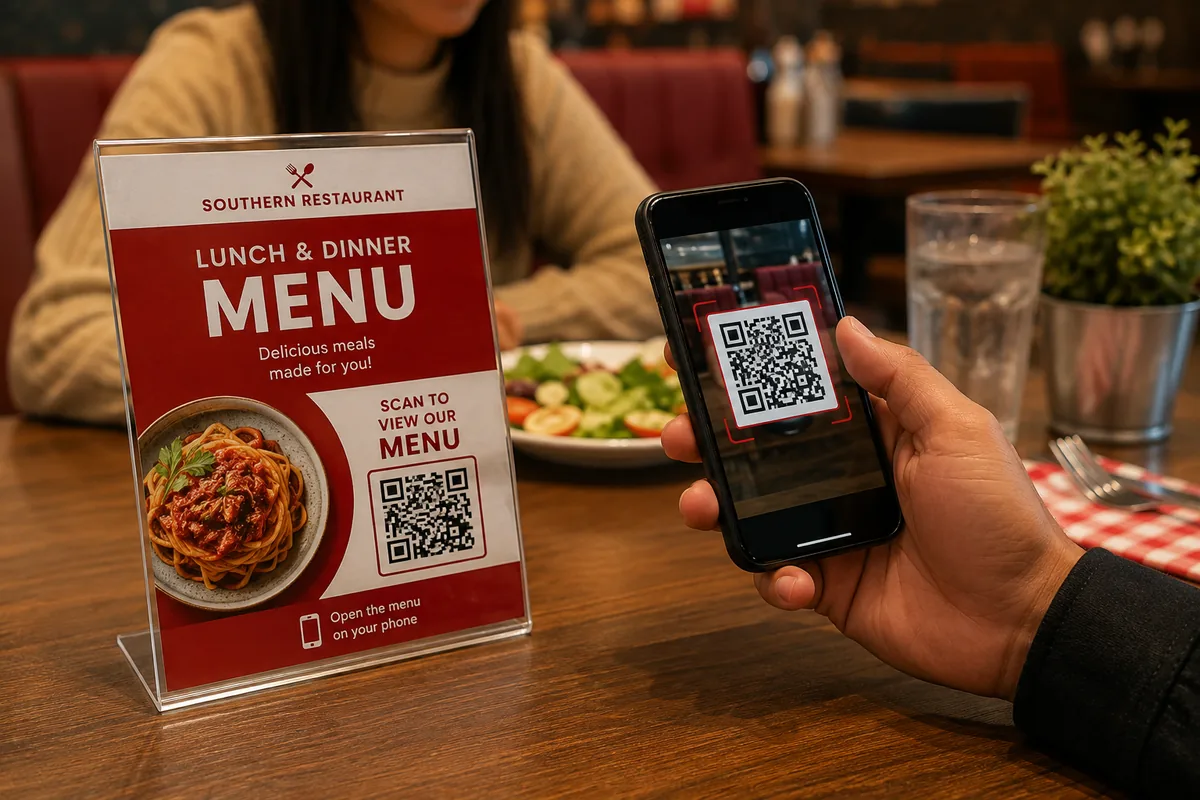
Connect table cards, signs, flyers or packaging to a digital menu, brochure or catalogue.
Manuals and instructions
Give customers quick access to installation instructions, user manuals or product information.
Reports and documents
Share public reports, schedules, programmes, forms or downloadable information sheets.
Education and training
Link printed handouts or posters to course notes, worksheets or reference documents.
Events
Provide programmes, maps, schedules or public information without adding more text to printed material.
Product information
Connect packaging or displays to specifications, care instructions or downloadable documentation.
Should you download PNG, SVG or PDF?
| Format | Useful for | Key point |
|---|---|---|
| PNG | Web pages, documents and general digital use | Simple raster image and widely supported. |
| SVG | Design work and resizing | Vector format that can scale without the same pixelation as a raster image. |
| Convenient printing and document workflows | Useful when you want the QR code delivered on a printable PDF page. |
Whichever format you choose, test the final exported version after resizing or placing it into your design.
Create your PDF QR code
Paste your public PDF link, generate the code, verify it and test the final destination before sharing or printing.
Open the PDF QR Code GeneratorFrequently asked questions
Can I make a QR code for a PDF?
Yes. Put the PDF at a public web address and create a QR code containing that URL.
Does QRmakerX upload or host my PDF?
No. The PDF remains with your website, cloud-storage service or other host. The generator uses the public URL you provide.
Does a PDF QR code expire?
The static QR code itself does not normally expire, but it stops opening the document if the destination URL is removed, changed or restricted.
Can I use a Google Drive or cloud-storage PDF link?
A share link can work if the permissions allow your intended audience to open it. Test the link while signed out before printing the QR code.
Can I replace the PDF later without changing the QR code?
Yes only when the replacement remains available at exactly the same public URL. If the URL changes, create a new QR code.
Why is my QR code very dense?
The amount of encoded data affects the QR pattern. A very long destination URL can produce a denser code, so use a stable, concise URL when practical.
Why should I test the final printed QR code?
Resizing, low contrast, print quality, reflections and the destination's access permissions can all affect the real user experience.
How this guide was reviewed
The QRmakerX Editorial Team checked these instructions against the current browser-based PDF QR generator workflow. Hosting permissions, cloud-storage behavior, phone scanners and PDF viewers can vary, so test the final code and destination on the devices your audience is likely to use.