
Quick answer
Use a QR code that opens one clear mobile action, keep it roughly 20–25 mm square as a practical starting point, preserve the clear margin around it, print one physical sample and test the final card on both Android and iPhone before ordering in quantity.
Quick business-card checklist
Why put a QR code on a business card?
A printed card has limited space. A QR code connects that small card to information that would otherwise be difficult to include, such as a complete contact profile, portfolio, booking page, location, product catalogue or WhatsApp conversation.
The most useful QR codes reduce effort for the recipient. Instead of typing a telephone number or website address, the person scans once and reaches the intended action.
Choose what the QR code should open
vCard contact details
Let the recipient save your name, company, job title, phone, email and website directly to their contacts.
Company website
Send people to a focused mobile page that explains your services and provides a clear way to contact you.
Portfolio or case studies
Useful for designers, consultants, photographers, contractors, architects and other professionals whose work is visual.
WhatsApp conversation
Open a WhatsApp chat with a prepared message so a prospect can contact you without manually saving the number first.
Booking page
Help clients schedule a meeting, consultation, site visit, appointment or service directly from the card.
Map location
Useful for offices, shops, clinics, restaurants, showrooms and event locations that visitors need to find.
How to add a QR code to a visiting card
“Visiting card” and “business card” usually describe the same type of professional card. The practical QR-code requirements are also the same: reliable size, strong contrast, clear placement and a useful mobile destination.
- Decide what the scan should open, such as a vCard, website, WhatsApp conversation or portfolio.
- Generate the QR code using the final information or permanent website address.
- Add it to a flat area of the card without stretching or distorting it.
- Keep a clear margin around the code and sufficient distance from the cutting edge.
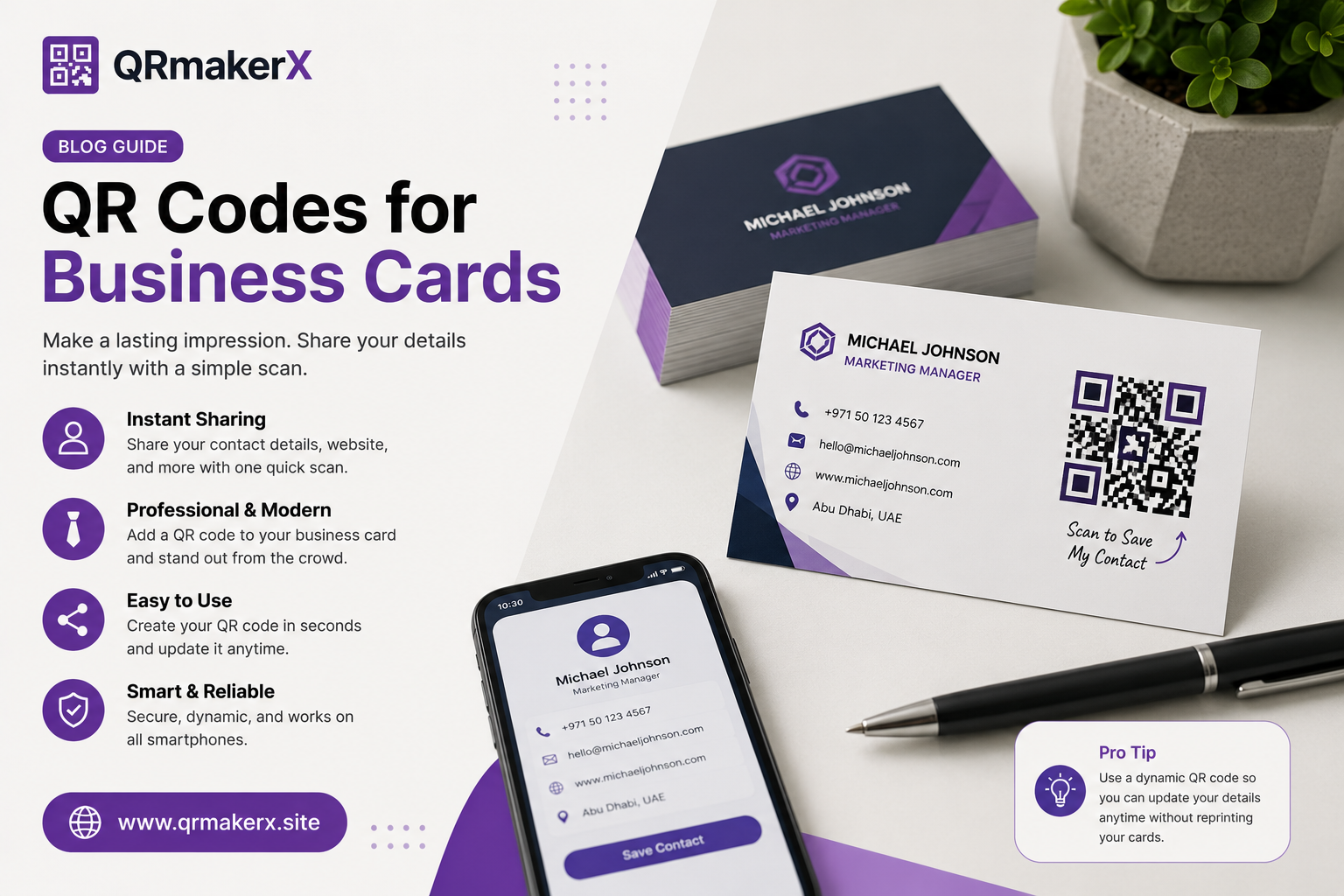
- Add short text such as “Scan to save my contact.”
- Print one sample and test the finished card on several phones.
What is the best QR code size for a business card?
A practical starting point is approximately 20–25 mm square. This is not a guaranteed size for every design. The final requirement depends on the amount of encoded data, module density, printer quality, contrast, surface finish and expected scanning distance.
| Code size | Practical assessment | Recommended action |
|---|---|---|
| Below 15 mm | Higher risk, especially with dense data, weak printing or customised artwork | Avoid unless the exact finished card passes repeated tests |
| 15–20 mm | May work for a simple, high-contrast code printed sharply | Test carefully on the final card material |
| 20–25 mm | Practical starting range for many ordinary business cards | Recommended starting point, followed by real print testing |
| Above 25 mm | Generally easier to scan but uses more card space | Use where the card layout and branding allow it |
The safest decision is not based on a number alone. Print the final design at its real size and test it before approving a large order.
Where should the QR code be placed?
The back of the card often provides the cleanest space because it allows the QR code, instruction and supporting details to remain separate from your name and main branding. A front placement can also work when the design remains uncluttered.
Keep it away from cut edges
Allow sufficient safety margin so trimming does not damage the code or its surrounding clear area.
Use a flat area
Do not place the code over folds, embossed patterns, textured zones or areas that may become scratched.
Avoid visual competition
The code should not fight with your logo, portrait, decorative background or essential contact information.
Make the instruction readable
Keep the call to action close to the code and large enough to read comfortably.
Design the QR code for reliable scanning
- Use strong contrast, preferably dark modules on a plain light background.
- Keep the QR code square and never stretch it horizontally or vertically.
- Preserve the clear margin around all four sides.
- Use the exported file, not a screenshot copied from the screen.
- Keep any central logo conservative and away from finder patterns.
- Avoid highly reflective, metallic or patterned backgrounds.
- Test every customised version after colours or logos are changed.
Should you use a static or dynamic QR code?
| Feature | Static QR code | Dynamic QR service |
|---|---|---|
| Destination changes | Not editable after printing | Usually editable through the provider |
| Scan analytics | Normally unavailable in the code itself | May be provided |
| Ongoing dependency | No redirect subscription is normally required | Depends on the provider and account |
| Best use | Permanent contact details or a stable URL | Campaigns requiring edits or scan reporting |
QRmakerX currently creates static QR codes. Use one when your contact details or destination are stable. When information changes, create and print a new code.
Read the complete static vs dynamic QR codes comparison .
Create your business-card QR code
Choose one useful destination, generate the code, add a clear instruction and test the finished printed card before approving the full order.
Open the QRmakerX GeneratorTest the card before bulk printing
- Export the QR code at high quality and place it at the intended final size.
- Print one physical sample using the actual paper, finish and production method.
- Scan from normal hand-held distance in indoor light and daylight.
- Test using at least one Android phone and one iPhone.
- Confirm that the correct mobile destination opens.
- Check that important information is not too close to the trim.
- Approve the large print order only after the sample works consistently.
Common business-card QR code mistakes
Printing too small
A small code may work on a screen but fail after printing, trimming or applying a glossy finish.
Using weak contrast
Similar foreground and background colours can make recognition unreliable.
Removing the clear margin
Text, frames or decorative shapes placed too close to the code can interfere with scanning.
Using an unstable URL
A static printed code cannot update itself when the destination is removed or changed.
Leaving the code unexplained
People may not scan when they do not know whether the code opens contact details, a website or something else.
Skipping the physical test
Screens cannot reproduce every issue caused by ink, laminate, paper texture, glare or cutting.
Frequently asked questions
Can I add a QR code to a visiting card?
Yes. A visiting-card QR code can open contact details, a website, WhatsApp, a portfolio, a booking page or another useful mobile destination. Test the final printed card before ordering a large quantity.
What should a business card QR code link to?
It can link to a vCard, website, portfolio, WhatsApp conversation, booking page, social profile, map location, product catalogue or another useful mobile destination.
What is the best QR code size for a business card?
About 20–25 mm square is a practical starting point. The final size depends on code density, print quality, contrast and the card finish, so test the real printed sample.
Where should the code be placed?
The back of the card often provides the cleanest space. Keep it away from cut edges, preserve the clear margin and place it on a flat area with strong contrast.
Should I use a static or dynamic QR code?
Use static for permanent contact details or a stable URL. A dynamic service may be useful when the destination must change or scan analytics are required. QRmakerX currently creates static QR codes.
Should I add text beside the QR code?
Yes. A short instruction such as “Scan to save my contact” explains the result and can encourage more people to scan.