Quick answer
Open the QRmakerX Live Location QR tool, choose how long the session should remain active, and create the session. Send the generated QR code or participant sharing link to the other person. They open it and choose whether to allow location access. Keep the separate viewer link private so you can view the location shared during the active session.
Open the Live Location QR toolReal-life QR location example
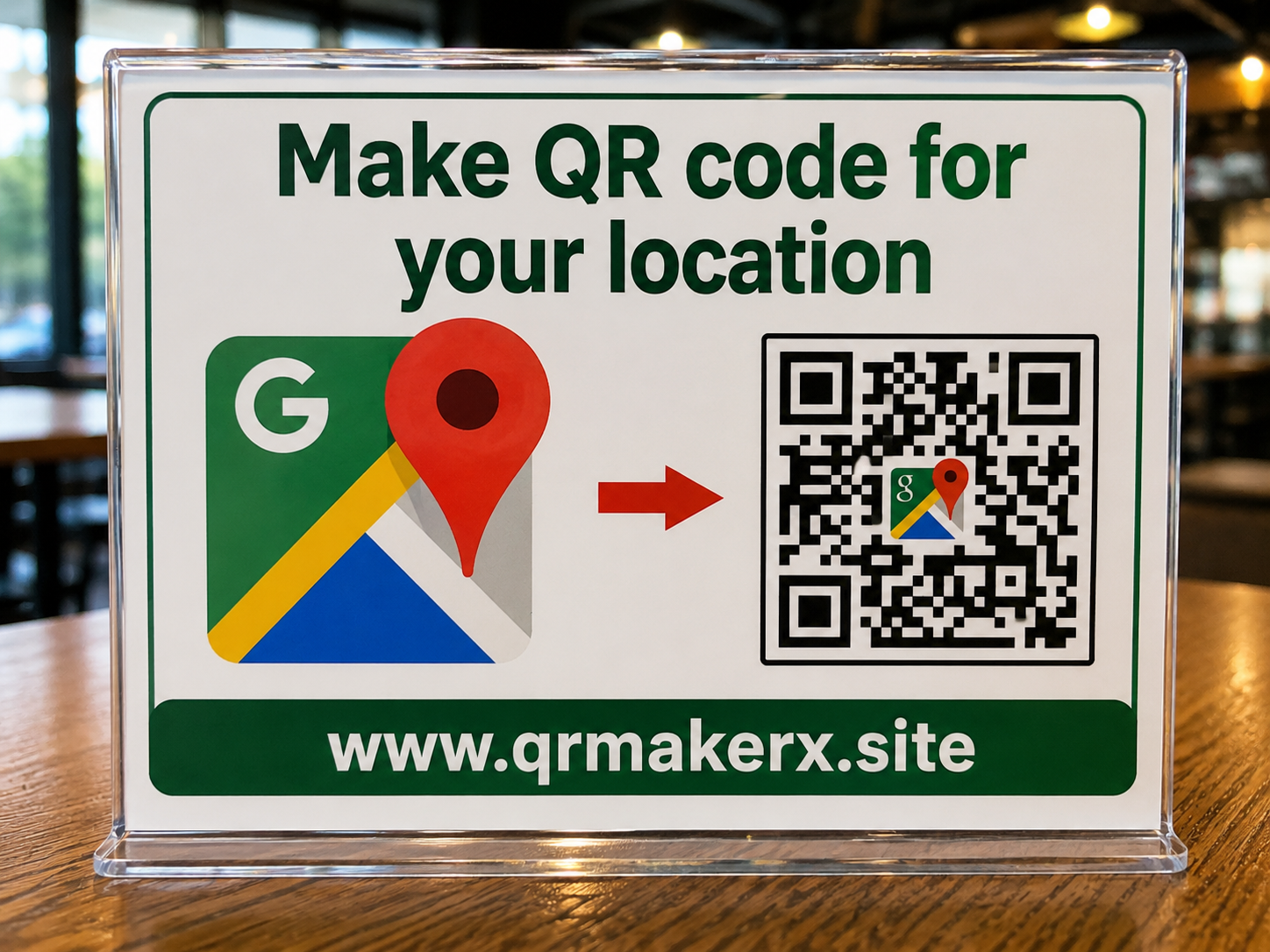
This example shows how a location QR code can be presented on a physical sign. For live location sharing, QRmakerX uses a temporary session where the participant must actively allow browser location access before any location is shared.
What is a live location QR code?
A live location QR code is different from a normal QR code containing one fixed map point. It opens a temporary sharing page where the participant can choose to allow browser location access. If permission is granted, the sharing page can send location updates while the session remains active.
How the QRmakerX live location flow works
The system separates the link used by the participant from the private link used by the viewer. This separation matters because the QR code is intended for the person who will decide whether to share their location.
Create a temporary session
Choose the available sharing duration and create the live location session.
Share the QR code or participant link
Send the QR code or sharing link to the person whose location you are requesting.
The participant opens the sharing page
Their browser asks for location permission. They decide whether to allow it.
View the shared location
Use your separate viewer link to see location updates while the session is active and the sharing device continues providing them.
How to create a live location QR code step by step
Open the Live Location QR tool
Go to the QRmakerX Live Location QR page.
Select the sharing duration
Choose how long you want the temporary session to remain active.
Create the session
Select Create Live Location QR. The tool creates the session, participant link, private viewer link and QR code.
Send the participant link
Share the QR code, copy the sharing link, or use the WhatsApp sharing option. Do not send the private viewer link to the participant.
Participant grants permission
After opening the sharing page, the participant must allow location access in their browser before any location can be shared.
Open the viewer
Use your private viewer link to see the latest location updates available during the active session.
Participant sharing link vs. viewer link
| Link | Who uses it? | Purpose |
|---|---|---|
| Participant / sharing link | The person being asked to share | Opens the permission-based location sharing page. This is the link contained in the QR code. |
| Viewer link | The person requesting the location | Opens the private viewer used to see location shared during the active session. |
Privacy and permission
Browser geolocation is permission based. When the participant opens the sharing page, their browser controls the location permission prompt. If they do not allow location access, the page cannot provide their location through that permission flow.
The participant should also be able to stop sharing by leaving or stopping the sharing process, and the temporary session expires after its selected duration.
Live Location QR vs. a normal Location QR code
The physical QR example above is suitable for showing how a location QR can be displayed. The key difference is that a normal Location QR points to one fixed place, while Live Location QR starts a temporary, permission-based sharing session.
| Feature | Live Location QR | Normal Location QR |
|---|---|---|
| Location type | Location updates from the sharing device during an active session | One fixed coordinate or map location |
| Permission | Participant must allow browser location access | No ongoing device-location permission is needed to open a fixed map point |
| Duration | Temporary session | The encoded fixed location remains the same |
| Best for | Permission-based temporary location sharing | Places, addresses, meeting points and fixed coordinates |
If you only need to encode a fixed place or GPS coordinate, use the Location QR Code Generator instead. For step-by-step guidance on fixed Google Maps locations, addresses and coordinates, read How to Create a Location QR Code for Google Maps.
Does the sharing phone need to keep the page open?
For reliable live updates, the browser and device need to continue providing geolocation updates. Closing the sharing page, revoking permission, putting the browser to sleep, battery-saving restrictions or background-activity limits may interrupt updates.
For this reason, treat the viewer as showing the latest location received during the active session, not as a guarantee of uninterrupted real-time tracking.
When can a live location QR code be useful?
Meeting someone
Request temporary location sharing when two people are trying to find each other.
Pickup coordination
Share a temporary request when coordinating an agreed pickup or arrival.
Events and teams
Use permission-based sharing for short-term coordination when participants understand the purpose.
Family coordination
Request temporary sharing from a family member who knowingly chooses to share their location.
Safe sharing practices
- Request location only from someone who understands and agrees to share it.
- Send the participant link or QR code to the intended person only.
- Keep the viewer link private.
- Use the shortest practical session duration.
- Do not publish an active viewer link on a public page or social network.
- Remember that browser and device settings can interrupt location updates.
Create a temporary Live Location QR
Create the session, send the participant link, and let the other person decide whether to grant location permission.
Open Live Location QRFrequently asked questions
Can a QR code track someone without permission?
No. On QRmakerX, the person opening the sharing page must actively allow browser location permission before location data can be shared.
Can I send the live location request through WhatsApp?
Yes. After creating a session, use the WhatsApp option to send the participant sharing link.
How long does a live location QR session last?
The session remains active for the duration selected when it is created and expires automatically afterward.
What is the viewer link?
The viewer link is the private link you keep for yourself to view location shared during the active session. Do not send it to the participant.
Does the sharing phone need to keep the page open?
Reliable updates depend on the browser and device continuing to provide geolocation updates. Closing the page or restricting background activity may stop updates.
Is Live Location QR the same as a Location QR code?
No. A normal Location QR code usually contains a fixed location. Live Location QR uses a temporary, permission-based session for location updates from the sharing device.
How this guide was reviewed
The QRmakerX Editorial Team checked these instructions against the current QRmakerX Live Location QR workflow. Browser geolocation behavior, permission prompts, background activity and device power-saving settings can vary, so test the workflow on the devices you intend to use.