A location QR code gives people a fast way to open a map destination without manually typing an address or searching for a place. It can point to a business, office, event venue, hotel, parking area, property, meeting point or exact GPS coordinate.
With QRmakerX, you can enter a complete address, paste a Google Maps share link or use latitude and longitude. The tool converts the destination into a static QR code that can be downloaded as PNG, SVG or PDF.
Create Your Location QR Code
Enter an address, Google Maps link or GPS coordinates, customize the design and download your QR code.
Create a Location QR Code FreeWhat Is a Location QR Code?
A location QR code is a QR code that opens a map destination when scanned. Depending on the information used, it may open a street address, business listing, dropped map pin or coordinate-based location.
The QR code itself usually stores a normal web link. A phone camera or QR scanner reads the link and opens it in Google Maps, another installed mapping application or a web browser.
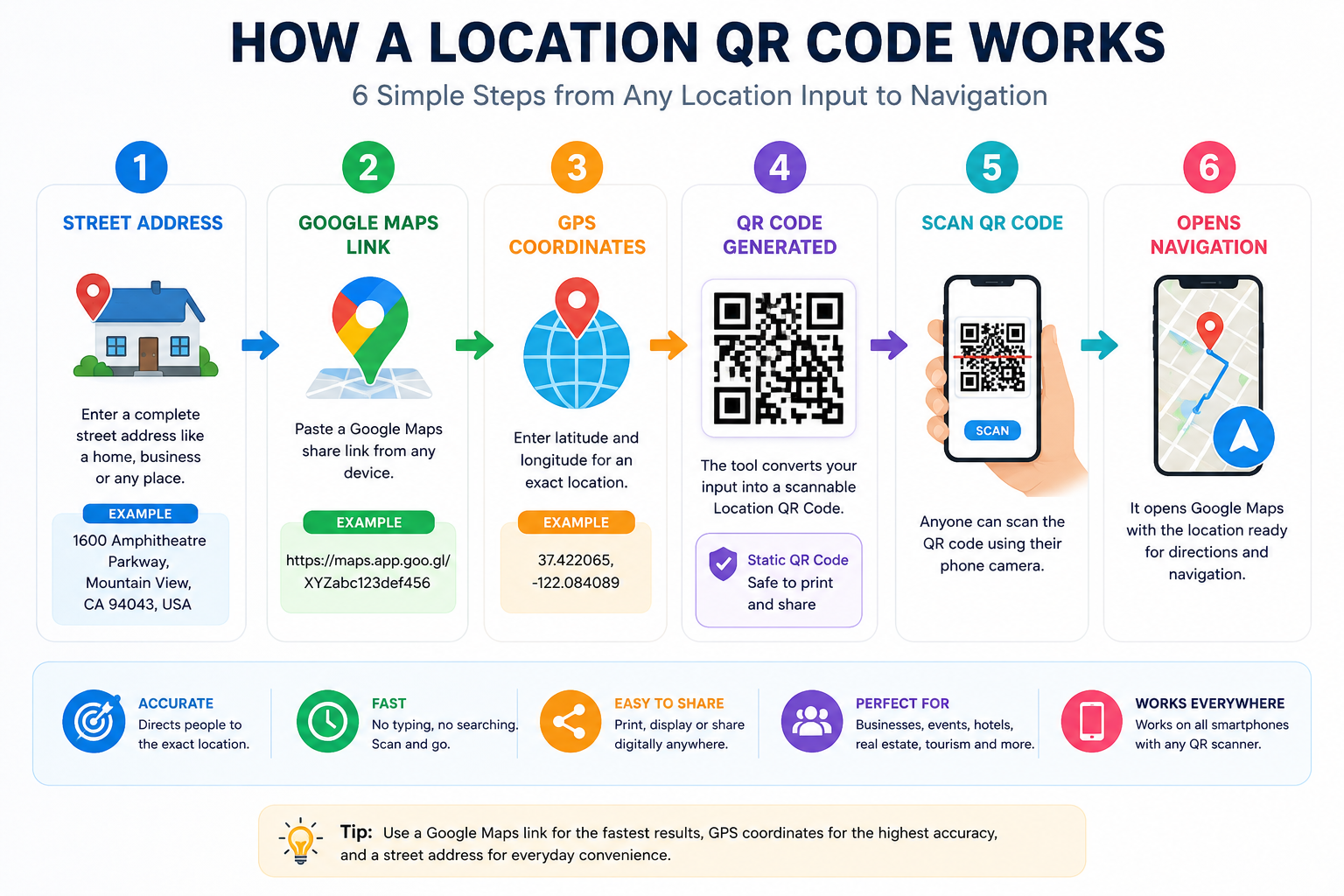
How a Location QR Code Works
- The QR code stores a map destination link.
- A person scans it with a phone camera or QR scanner.
- The phone recognizes the map link.
- A mapping application or browser opens.
- The person can view the destination and start navigation.
How to Create a Location QR Code Step by Step
Open the Location QR Generator
Go to the free QRmakerX Location QR Code Generator.
Enter the Destination
Type a street address, paste a Google Maps link, or enter latitude and longitude.
Customize the QR Code
Choose foreground and background colors and optionally upload a small logo.
Create the QR Code
Generate the code and check that the preview appears correctly.
Open and Test the Location
Use the test button and scan the QR code with more than one phone.
Download the Correct Format
Use PNG for digital use, SVG for scalable printing or PDF for convenient sharing.
Three Ways to Create the Destination
1. Use a Street Address
Enter the complete address, including building number, street, city and country when available.
This method is convenient, but you should verify the map pin because similar addresses or incomplete details may produce the wrong result.
2. Use a Google Maps Share Link
Open the exact destination in Google Maps, select the correct place or pin, choose the share option and copy the public link. This is usually the best choice when you need a specific entrance, parking area or business listing.
3. Use GPS Coordinates
Coordinates are useful for outdoor locations, undeveloped sites and places without a formal address.
Use decimal latitude and longitude separated by a comma. Confirm the order because reversing latitude and longitude can lead to a completely different location.
Which Input Method Is Best?
| Input method | Best use | Main caution |
|---|---|---|
| Street address | Homes, offices, stores and recognized buildings | Confirm the correct pin and entrance |
| Google Maps link | Exact business listing, entrance, parking or dropped pin | Use a public share link |
| GPS coordinates | Remote areas, construction sites, trails and open land | Check latitude and longitude carefully |
Useful Location QR Code Examples
Business and office locations
Add the QR code to business cards, brochures, storefront signs, invoices, email signatures or appointment confirmations.
Events and wedding venues
Place a location QR code on invitations, tickets, event pages and venue signs so guests can open directions quickly.
Hotels and tourism
Use QR codes for hotels, attractions, pickup points, tour meeting areas and landmarks.
Real estate
Add the code to property listings, viewing invitations, brochures and development boards.
Parking and entrances
A general building address may not direct visitors to the correct gate. Use an exact map pin for parking, reception or delivery entrances.
Construction and field work
Coordinates can identify project sites, temporary access points, inspection areas and remote work locations.
Delivery and service visits
Share a precise destination with drivers, technicians, contractors and mobile teams.
How to Test a Location QR Code
- Scan the QR code on an Android phone.
- Scan it on an iPhone when possible.
- Check that the expected map application opens.
- Confirm the correct destination and map pin.
- Check the intended entrance, parking area or meeting point.
- Test the code at the planned print size.
- Test under normal lighting and from a practical scanning distance.
Design and Printing Best Practices
- Use dark QR modules on a light background.
- Keep a clear quiet zone around the code.
- Do not stretch, crop or distort the QR code.
- Keep any logo small and centered.
- Test custom colors before printing.
- Use SVG for large signs and professional printing.
- Add a short instruction such as “Scan for directions.”
- Place the QR code where users can reach and scan it safely.
Can the Location Be Changed Later?
No. The QRmakerX Location QR Code Generator creates a static QR code. The destination is stored directly inside the code. If the location, map link or entrance changes, create and print a new QR code.
Privacy and Responsible Use
A location QR code makes the destination available to anyone who scans it. Do not publish private home locations, restricted access points or sensitive operational sites without permission.
Businesses should also consider safety, consent and access-control requirements before distributing QR codes for private facilities or staff-only areas.
Frequently Asked Questions
What is a location QR code?
It is a QR code that opens a map destination, address or coordinate-based location when scanned.
Can I create a QR code for Google Maps?
Yes. Copy the public Google Maps share link and paste it into the QRmakerX Location QR Generator.
Can I enter a normal address?
Yes. Enter a complete address and verify the resulting map destination before printing.
Can I use GPS coordinates?
Yes. Enter latitude and longitude in decimal format, separated by a comma.
Does the code expire?
QRmakerX does not add an expiry date or scan limit. The map service or destination link must remain available.
Can I change the destination after printing?
No. Create a new static QR code when the destination changes.
Which download format should I use?
PNG is useful for digital content, SVG for scalable printing and PDF for convenient print sharing.
Is the generator free?
QRmakerX allows you to create and download the static location QR code without signup or watermark.
Ready to Create Your Location QR Code?
Enter your address, Google Maps link or coordinates, test the destination and download the finished QR code.
Create a Location QR Code Free